Polkadot
The Polkadot{.js} extension is a Substrate/EVM wallet created by the creators of Substrate & Polkadot/Kusama, the Parity Team.
This is the barebones wallet framework designed to support all Substrate-based networks. The extension functions similarly to MetaMask or other browser-based Web3 wallets you may have used.
Create a New Wallet
- Visit the official Polkadot{.js} Extension website and download the respective version for your browser (Chrome/Firefox).
The Chrome extension works seamlessly on all Chromium-based browsers, including Google Chrome, Brave, Vivaldi, Microsoft Edge, and Opera.
-
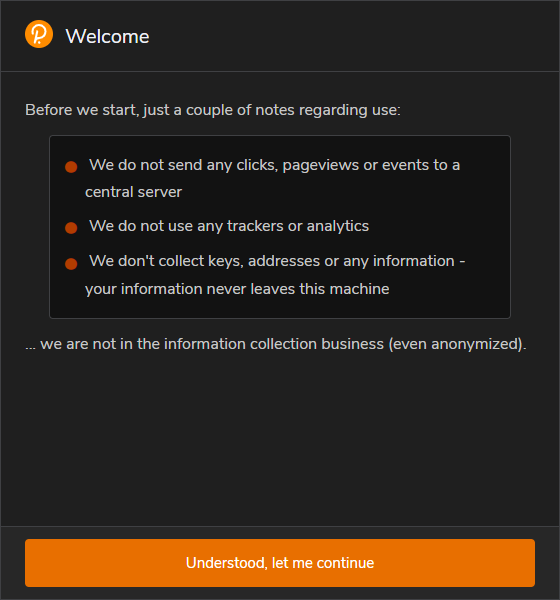
Once the extension is installed, open it from your browser's extension toolbar. Review the privacy and information notes, then click the orange "Understood, let me continue" button at the bottom.
-
On the Add Account splash screen, click the large
+icon in the center of the window (or the small+icon in the top-right corner) to create your first account.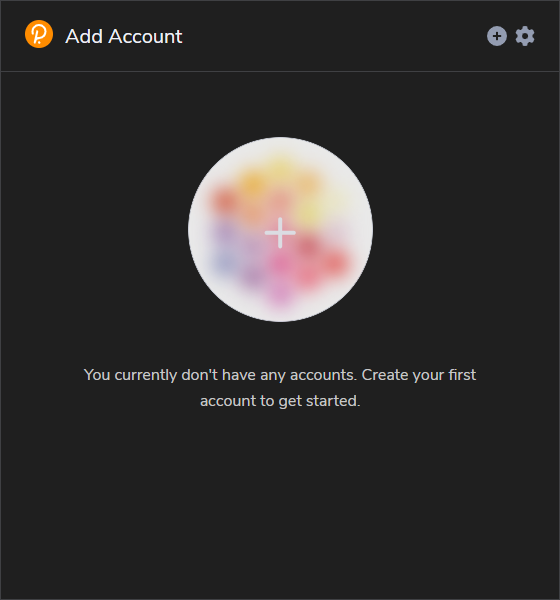
-
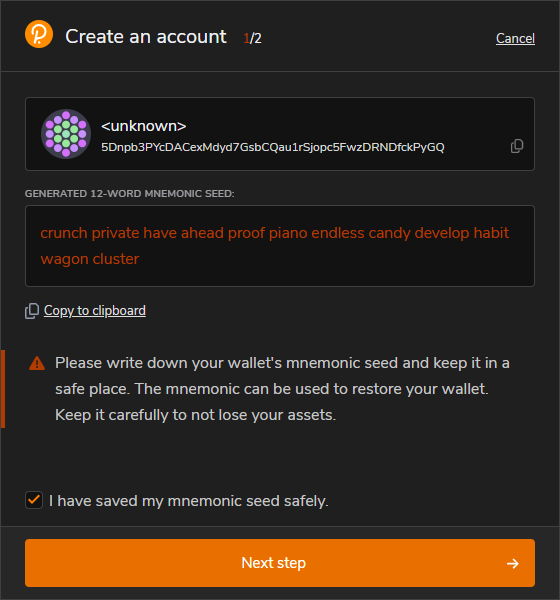
The extension will generate and display your unique 12-word mnemonic seed phrase. Write this down or click "Copy to clipboard" to back it up.
MAKE SURE YOU STORE THIS MNEMONIC SEED SECURELY AND NEVER SHARE IT. Anyone who obtains these 12 words can access and control your network funds permanently.
Once securely backed up, click the checkbox for "I have saved my mnemonic seed safely." and then click the orange "Next step" button at the bottom.
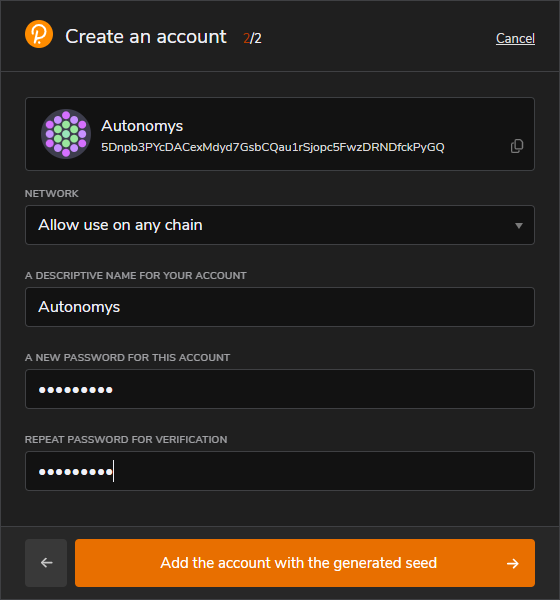
- On the second configuration page (Create an account 2/2), set up your account parameters:
- Network: Leave this set to the default "Allow use on any chain" option (you will map this to the Autonomys mainnet via metadata settings later).
- A Descriptive Name for Your Account: Input a local reference name for your wallet.
- A New Password for This Account: Create a strong password to encrypt your keys locally, then confirm it in the secondary password field.
Once all fields are complete, click the orange "Add the account with the generated seed" button at the bottom.
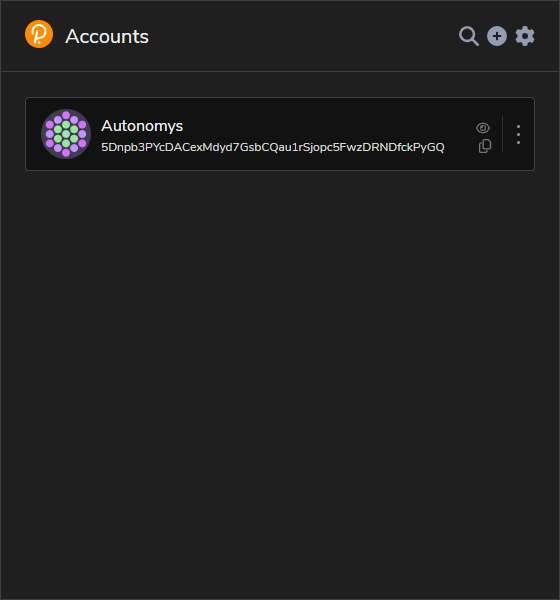
- Congratulations! You have successfully created your Polkadot.js wallet extension account. Your active account profile card will now be displayed inside the main dashboard interface.
Importing an Existing Seed
If you have an existing mnemonic seed phrase, use this workflow to restore your account.
-
Install the Extension (See step 1 of the previous section).
-
Once the extension is installed, open it and click the orange
+icon in the top-right toolbar. From the dropdown menu that appears, select "Import account from pre-existing seed".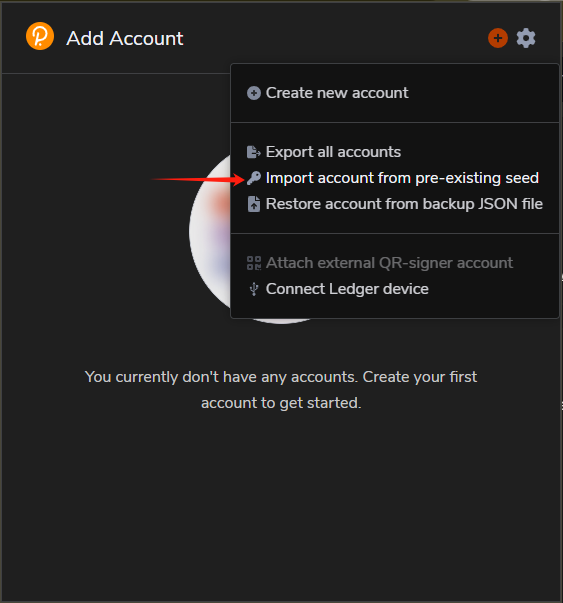
-
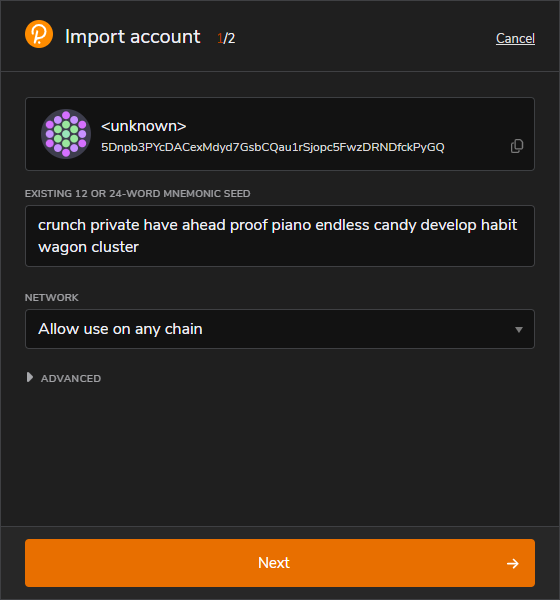
Type or paste your 12-word mnemonic seed phrase into the designated input box and click the orange "Next" button.
-
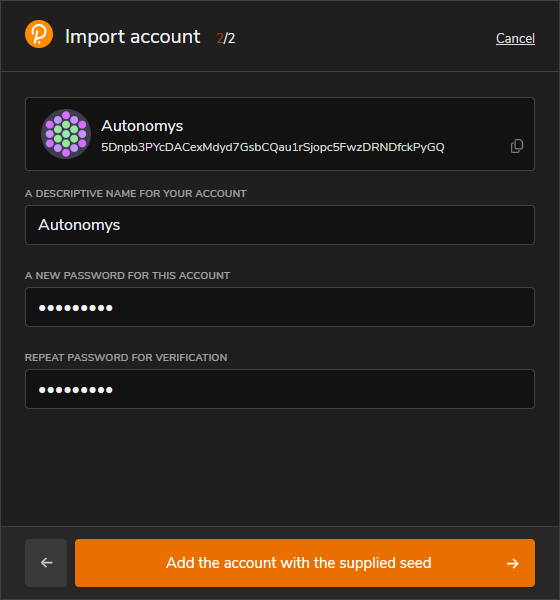
On the final page (Import account 2/2), fill out your account identification and security credentials:
- A Descriptive Name for Your Account: Enter a local identifier for your imported profile.
- A New Password for This Account: Set a strong password to encrypt this wallet account locally on your device, then confirm it in the field below.
Once both fields are filled, click the orange "Add the account with the supplied seed" button at the bottom to finalize importing your account.
Troubleshooting
If you face any issues or want to explore advanced features, consult the Official Polkadot.js Documentation. Common network FAQs are detailed below.
How can I find my Public Address?
-
You can see your default Substrate public address starting with
5directly below your wallet name inside the main extension window. For a comprehensive overview of address variations, you can also consult the community Substrate Wallet Guide.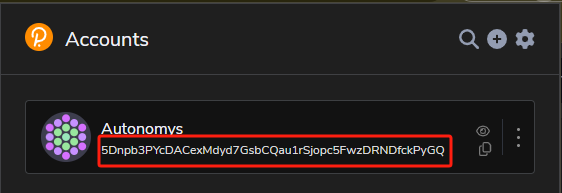
-
To view your specific Autonomys mainnet address, click the three orange vertical dots on the right side of your account card to open the options menu. Click the dropdown at the bottom that reads "Allow use on any chain" and switch it to "Autonomys mainnet". Once you exit the menu, your public address string will update to start with the native network identifier
su.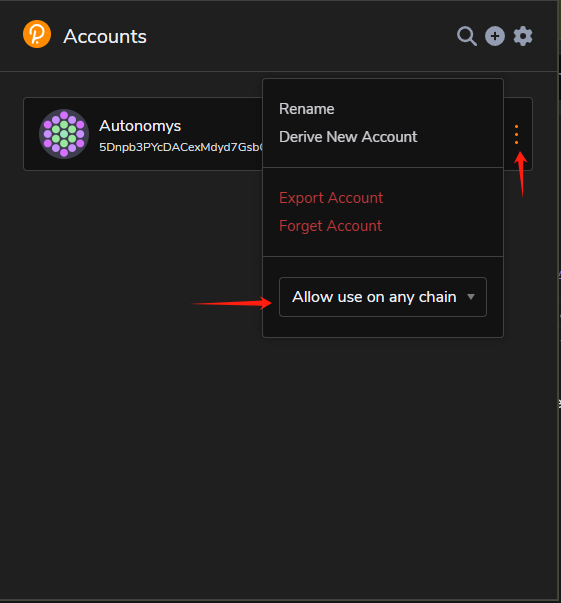
I Don't See 'Autonomys mainnet' in the Chain Settings Dropdown
Sometimes when installing or updating the extension on a new browser, the local wallet doesn't automatically recognize the latest Autonomys Network parameters. You simply need to push the latest blockchain metadata directly from the portal interface into your browser extension.
Follow these steps with your browser window open:
-
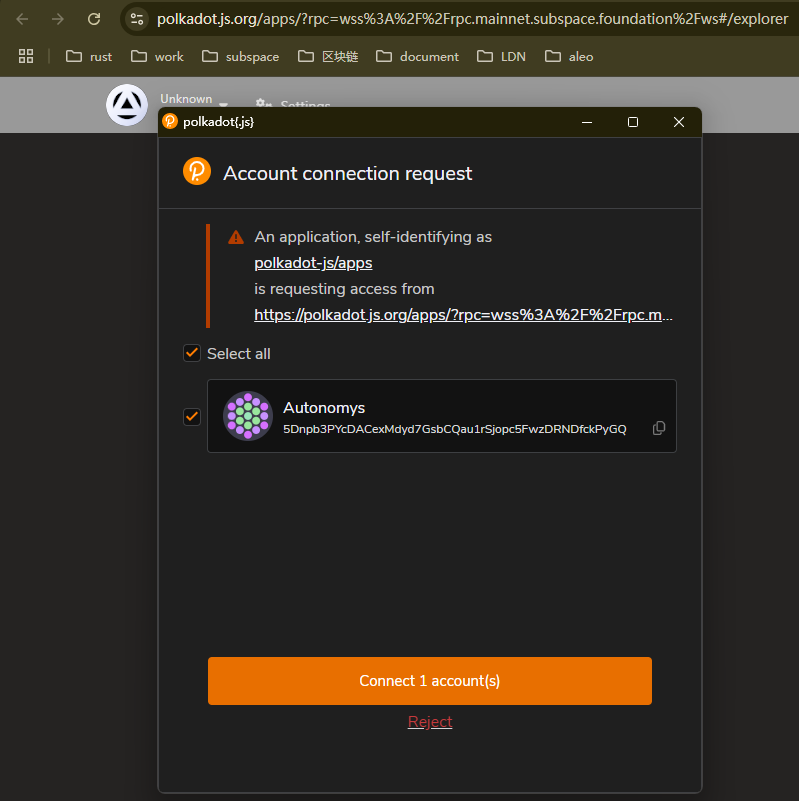
Navigate to the official Autonomys Portal. When your browser extension detects the site, an access permissions popup will appear. Check the box for your desired account(s) and click "Connect 1 account(s)" to allow the portal to communicate with your wallet.
-
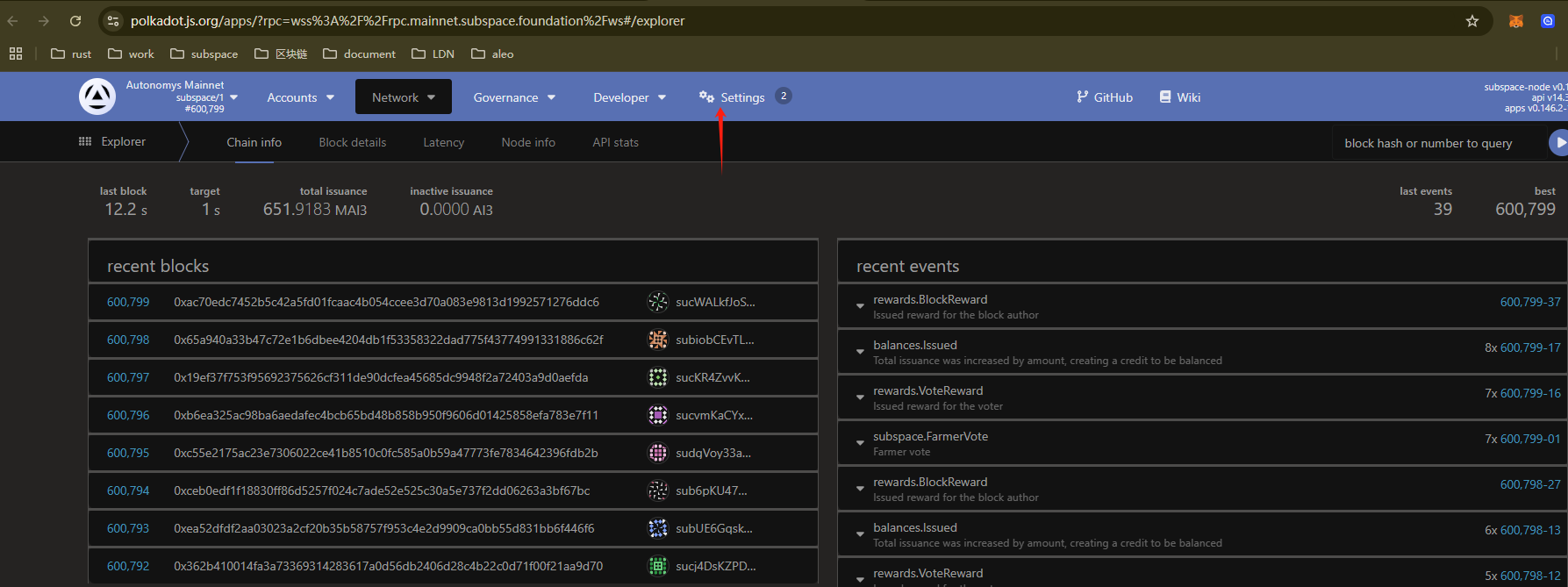
In the main top navigation menu of the web interface, click on Settings.
-
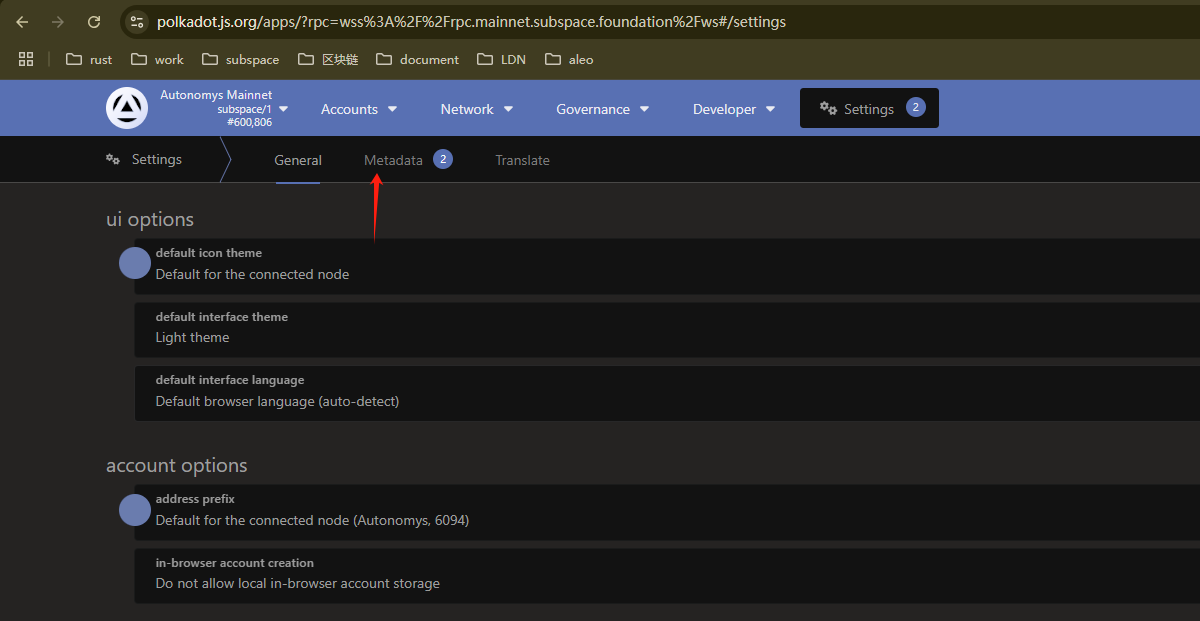
Within the sub-tabs under the settings menu, click on the Metadata option.
-
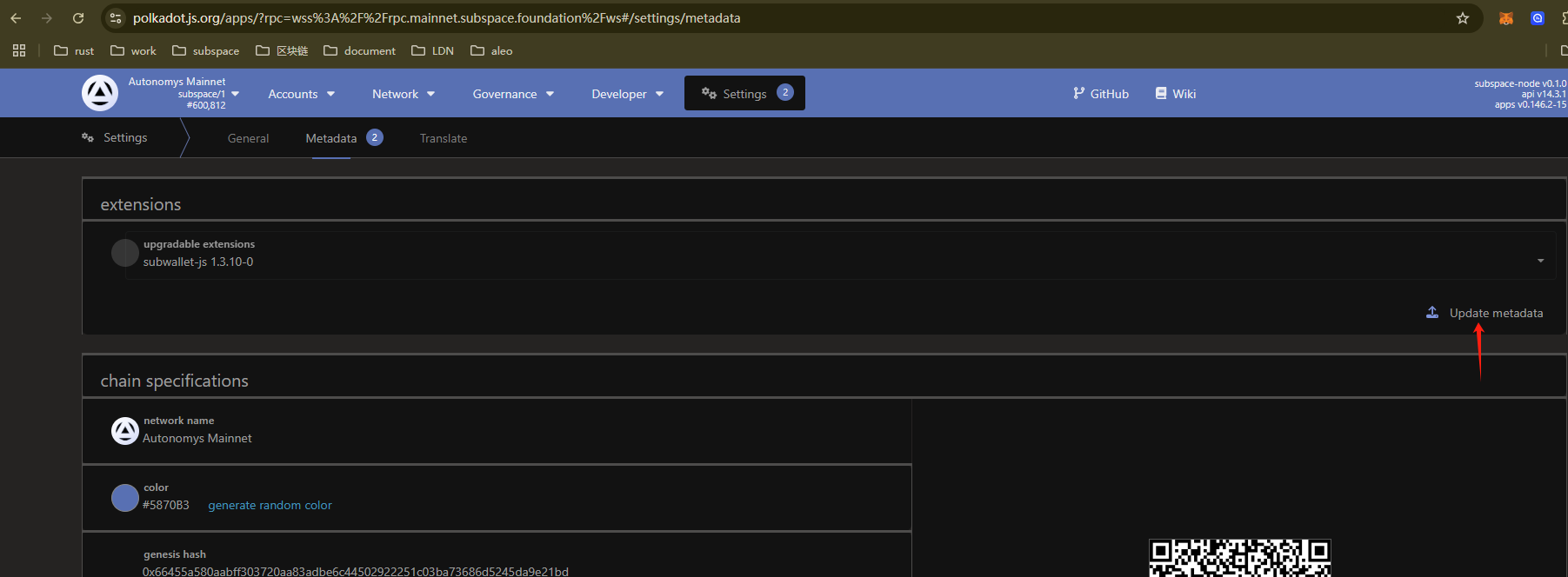
Click the active action button labeled "Update Metadata".
-
Your browser extension will display a prompt asking to authorize the injection. Click "Yes, do this metadata update" to finalize the network sync.
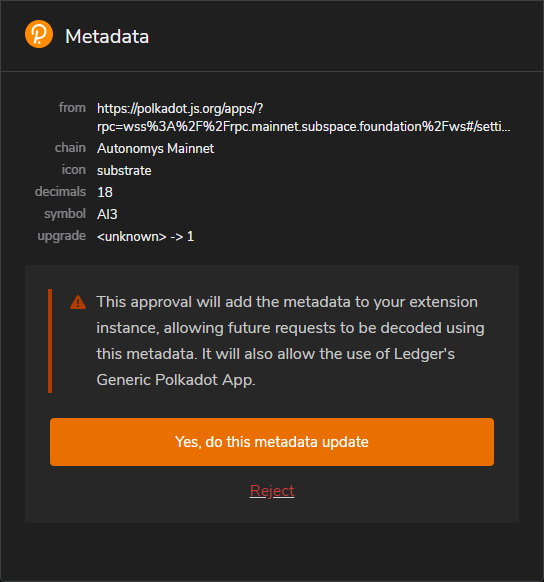
Once completed, open your wallet extension window, click the ... menu on your account card, and select the "Allow use on any chain" dropdown. Autonomys mainnet will now be fully available.
How Do I Backup my Wallet?
-
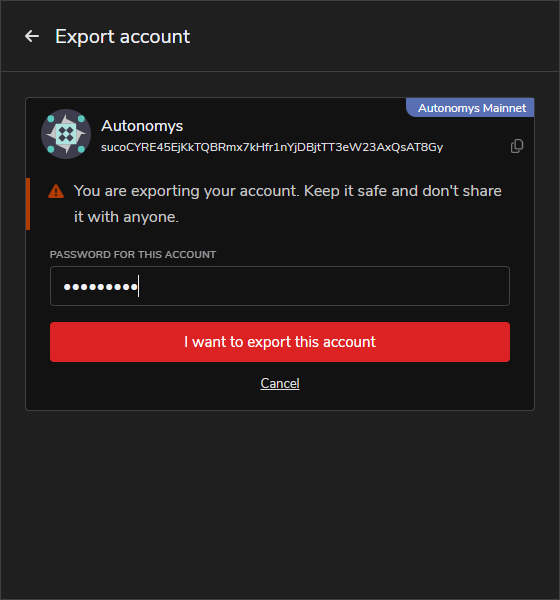
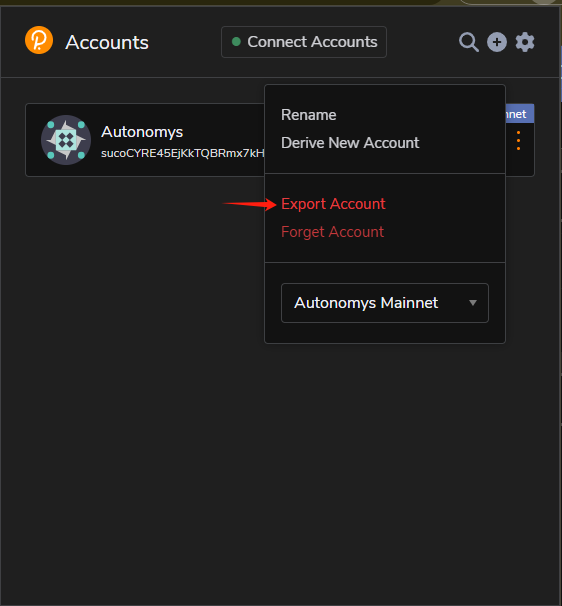
Open the account settings menu by clicking the three orange vertical dots on your account card, then click the red "Export Account" option.
-
On the Export account screen, type your local password into the "PASSWORD FOR THIS ACCOUNT" input field, then click the dark red button that reads "I want to export this account". This will generate and download an encrypted backup
.jsonfile containing your account data to your machine.